Get started
From your Telegram group to a first pull request
Add the bot to your group and follow the checklist it posts. It takes a few minutes, all from Telegram. No server to run, and your code stays in your own GitHub.
What you need
A Telegram group
Where your team talks to the agents and approves their work.
A GitHub repo
Someone with admin or maintain rights on it does the GitHub steps. Teammates need write access.
An AI login
Your Claude Pro/Max or ChatGPT subscription, or an Anthropic or OpenAI API key.
Step 1: Add the bot to your group
Add @crewlineai to your Telegram group. The setup checklist appears right away. You can bring it back any time with /setup.
Anyone in the group can press its buttons. The checklist shows the whole team's progress, so it doesn't jump back when someone new taps it. Tap 🔄 Check again after each step.
CREW AI
👋 Hi crew! I'll guide you step by step. Anyone can press the buttons; tap 🔄 after each step.
🧭
CREW AI setup✅ 1. GitHub App created
⬜ 2. Link your GitHub
⬜ 3. Install the app on a repo
⬜ …
🔗 Connect GitHub🔄 Check again
Step 2: Connect GitHub and pick your repos
Tap 🔗 Connect GitHub. GitHub opens, you choose the repos to install on, and your GitHub account is linked in the same visit.
Back in Telegram, the bot asks which repos this group works on. Tap ➕ to add one. Only someone with admin or maintain rights on a repo can add it, and each repo belongs to one group. Change it later with /repos.
CREW AI
📦
Which repos should this group work on?Tap to add or remove. A repo belongs to one group only.
➕ web✅ api (tap to remove)🔒 site (another group)
Step 3: Add the workflow file
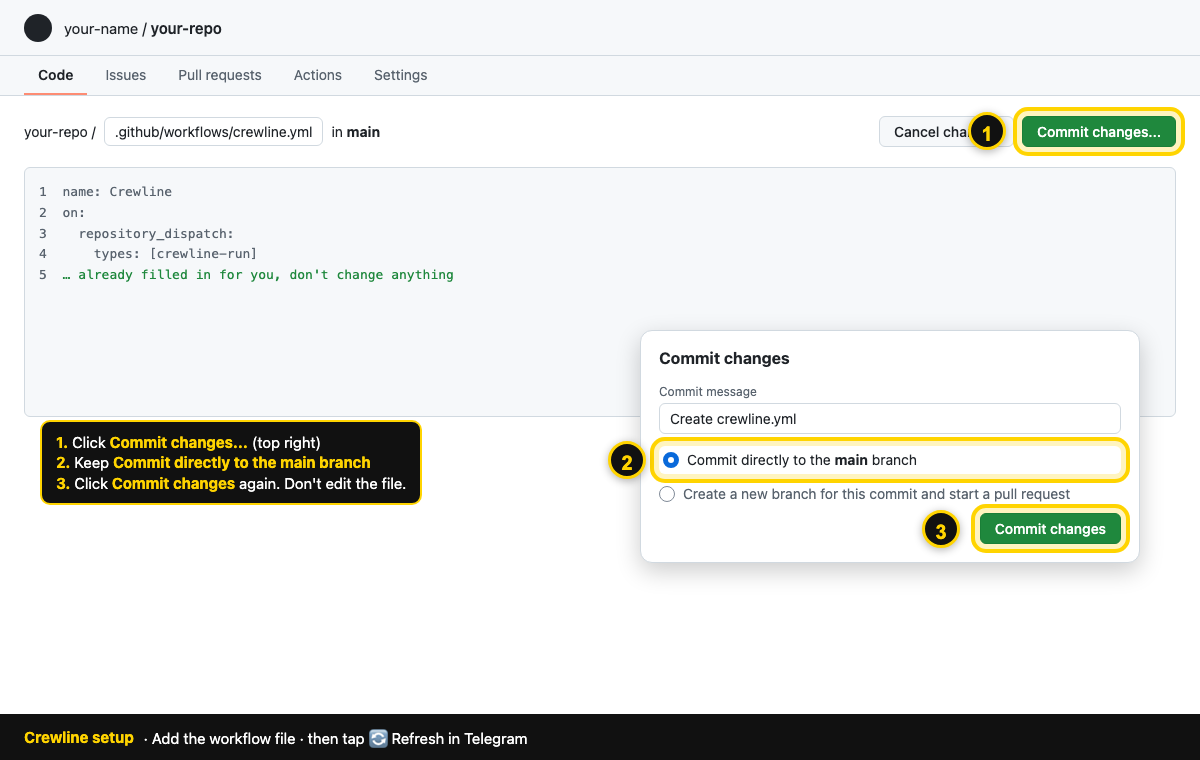
Tap 📄 Add workflow to …. GitHub opens with the file already filled in. Press Commit changes and don't edit it. The GitHub actions in it are pinned to exact commits and the AI tools to exact versions.
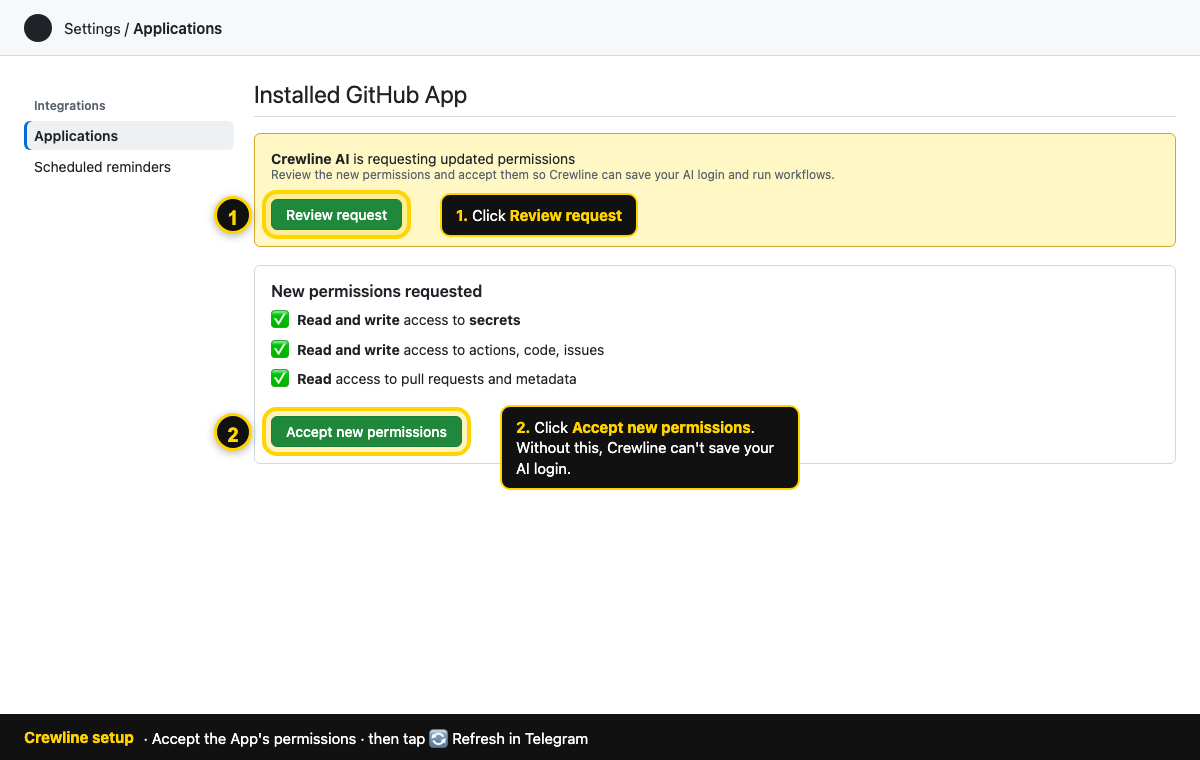
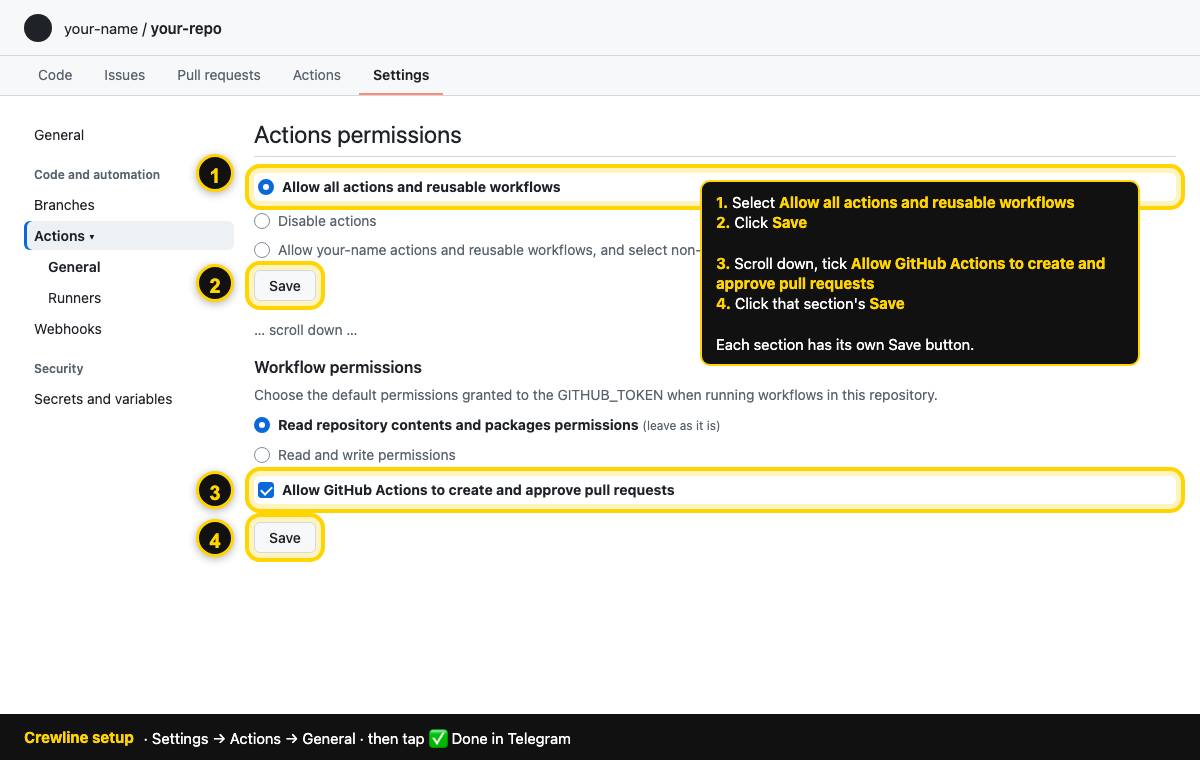
If GitHub asks you to accept new App permissions, the checklist shows an ✅ Accept new permissions button first. If it asks for two repo settings, open the settings page it links, set them, then tap ✅ Done. Most teams never see that step.
CREW AI
Add the workflow file. The button opens GitHub with the file ready: just press
Commit changes.
📄 Add workflow to web🖼 Show me where to click
Step 4: Pick your AI and save its login
Choose a Claude subscription, Claude API key, ChatGPT subscription or OpenAI API key. The bot tells you what to copy: for Claude, run claude setup-token; for ChatGPT, run codex login and copy ~/.codex/auth.json.
Tap 🔑 Connect your AI and paste it into the secure form. It goes straight to GitHub as an encrypted secret and never appears in the chat. Your agent then joins the group.
CREW AI
Which AI should your agent use? Your own subscription stays yours: only you can give it tasks.
Claude subscriptionClaude API keyChatGPT subscriptionOpenAI API key
CREW AI
🤝
sam-claude (Sam's agent) is connected and joined the chat.
Step 5: Make the bot a group admin
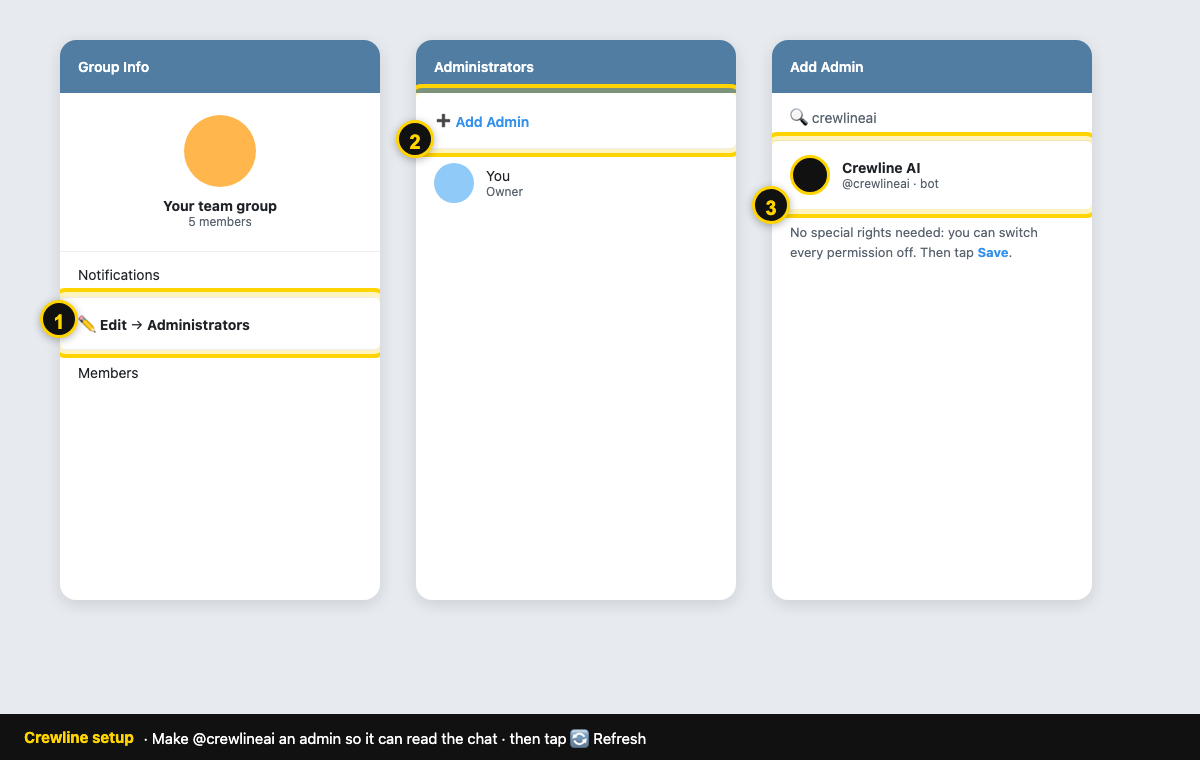
Agents need to read the whole conversation. Open the group info, then Administrators → Add Admin and pick the CREW AI bot. It needs no special rights.
CREW AI
⬜ 8. Make me a group admin so I can read the chat
🖼 Show me where to click
Step 6: Just talk
Write what you need. Ask an agent directly with @its-name, or reply to its message. It answers live in the chat.
When something needs code, the agent offers it with ▶️ Yes, do it / ✖️ No. A maintainer's Yes also approves the agent's plan, so it's one tap. A member's Yes still waits for a maintainer to tap ✅ Approve on the plan. The agent opens a pull request. A human always merges.
You
the login button is broken on mobile
CREW AI
🙋
sam-claude can take this:
Fix the mobile login buttonShould it start? Nothing happens until someone taps
Yes.
▶️ Yes, do it✖️ No
Chats are illustrations; the bot's exact wording may differ.
Teammates bring their own agent
Once setup is done, the checklist shows 🤝 Add your agent. New members also get it when they join the group. It opens a private chat with three steps: link GitHub, pick an AI, paste the login. A teammate needs write access to the repo on GitHub first. People without it can still chat, but agents never see their messages.
Troubleshooting
“You aren't an admin of any repo in that installation.”
Only someone with admin or maintain rights on a repo can connect it. Ask a repo admin to tap 🔗 Connect GitHub, or to give you that role on GitHub.
“📦 Installed. One more step: link your GitHub…”
The app was installed before your GitHub account was linked. Tap 🔗 Link GitHub in that message. The install finishes by itself once you're linked.
“… already belongs to another group.”
A repo works with one group at a time. Remove it in the other group first (/repos there, tap the ✅ repo).
“This link is invalid or expired. Start again from Telegram.”
Setup links work once and expire after 30 minutes. Tap 🔄 Check again in the checklist for a fresh one.
“🔑 … has no AI login yet.”
The agent's owner still has to save a login. Open /setup and tap 🔑 Connect your AI. If the form says “That doesn't look like a Claude login token”, run claude setup-token again and copy the line that starts with sk-ant-oat.
“🔑 … is added. Agents need their login saved there too”
Logins are saved per repo. When you add a repo later, each agent's owner taps 🔑 Save my AI login again and pastes it once more.
“❌ Couldn't start … Is the CREW AI workflow file in the repo?”
The file .github/workflows/crewline.yml is missing from the default branch. Use the 📄 Add workflow button in /setup.
“❌ The agent's run failed before it could answer.”
CREW AI noticed the GitHub run ended without reporting back. Tap Open the run in that message to see why. The usual causes are a missing or expired AI login, or a workflow setting.
“⌛ No answer came back.”
GitHub never started the run, or it stopped without a word. Check the repo's Actions tab, then ask again. Runs that haven't started after 5 minutes are closed with this message.
“⏳ … is still answering the previous message.”
Each agent answers one message at a time. Wait a minute and ask again.
“🛑 This chat hit today's limit of agent answers.”
Each group has a daily limit of agent answers. It resets 24 hours later.
“Only maintainers can approve plans.”
Plans need someone with admin or maintain rights on the repo. Roles come from GitHub and are refreshed every 10 minutes.
The agents ignore my messages
Agents only read people who linked GitHub and have write access to the repo. If the checklist says “Make me a group admin so I can read the chat”, make the bot an admin (see the picture above).
“Link your GitHub first: DM me /link”
Open a private chat with the bot and send /link. Linking only happens in a private chat, so nobody else can use your code.
I'd rather host it myself
You can. Follow the self-hosted setup; the source will be published under Apache-2.0.
Ready when your group is.
A few minutes, all from Telegram.
 CREW
CREW